Shortcut
Shortcut - Part 02
Component Connection
This section details specialized actions and modifiers for quickly connecting, disconnecting, and rerouting wires, which helps maintain a clean and logical definition structure.
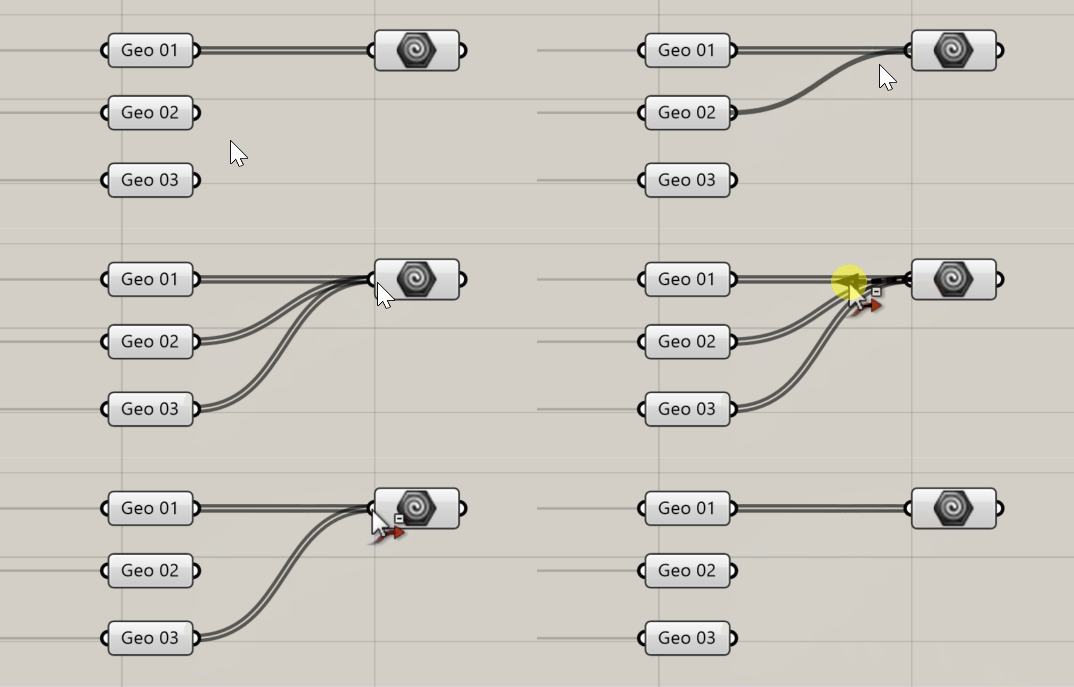
Shift + Drag / Ctrl + Drag
Shift + Drag (from output): Add a new wire connection to another input. You will see a green arrow with a “+” sign; Ctrl + Drag (on existing wire): Disconnect an existing wire connection. You will see a red arrow with a “-” sign.
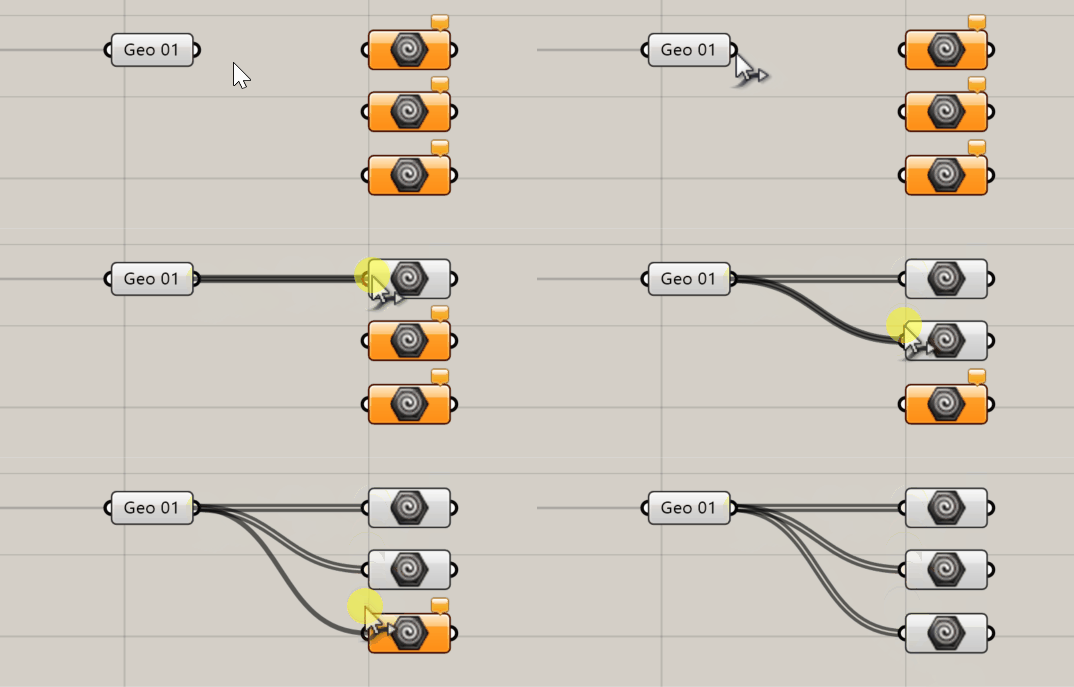
Drag + Right-click
Drag from an output, then right-click on the target node (to input): connect the same data to multiple inputs on the target component (no need to drag a separate wire for each input).
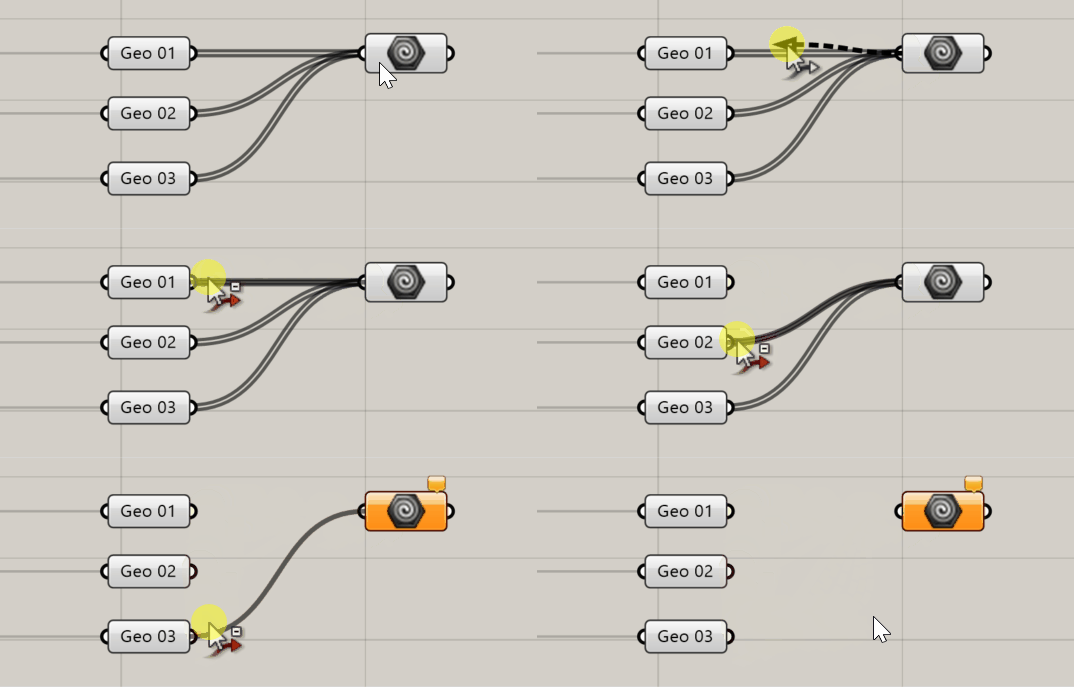
Drag + Ctrl + Right-click
Drag from an input, hold Ctrl and right-click on the target node (to input): disconnect the data from multiple inputs on the target component simultaneously.
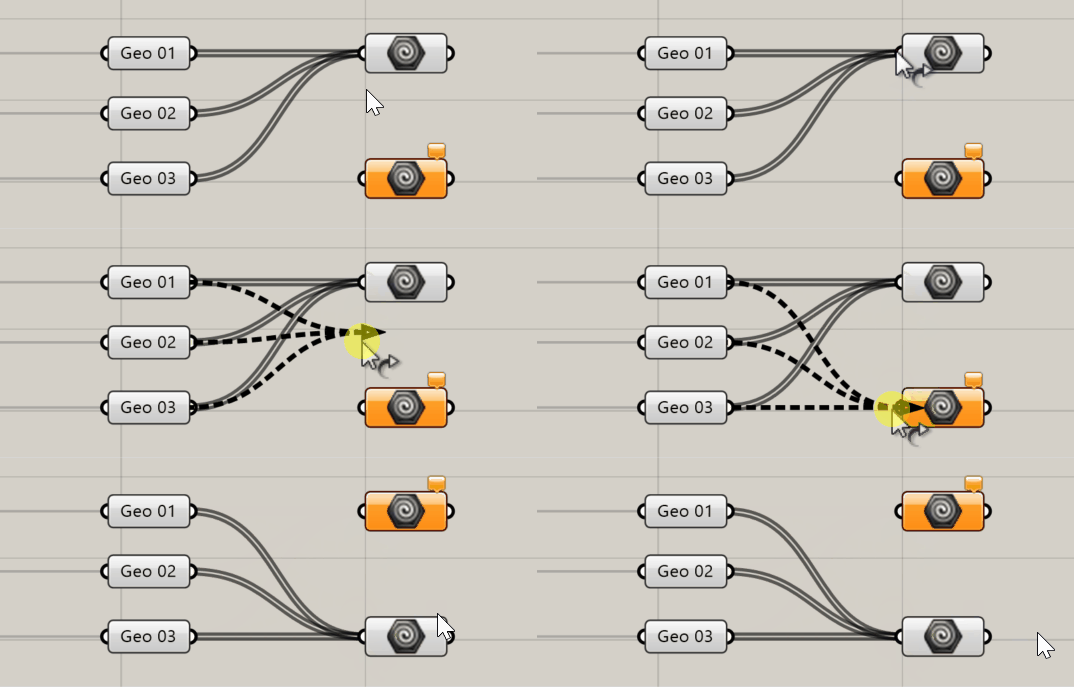
Ctrl + Shift + Drag
From an output: transfer all existing connections from the current output to a new component’s input in a single action.
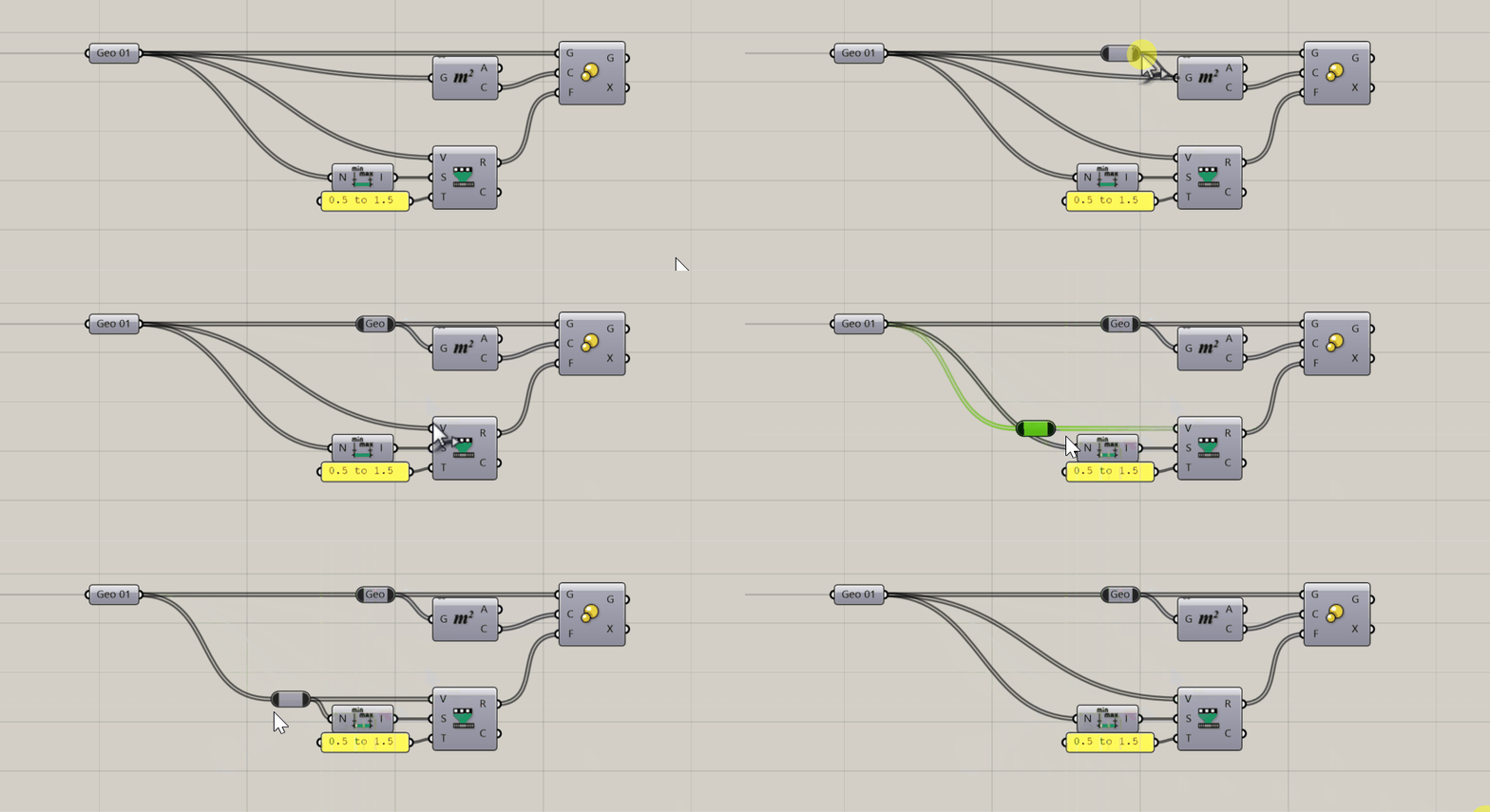
Double-click on a wire
Double-click on an existing wire to insert a Relay component to segment long wires and manage visual complexity. You could cancel a Relay by double-clicking it.