BRIEF
Here is a curated list of essential shortcuts and professional tips designed to significantly accelerate and enhance your Grasshopper workflow. These techniques cover the four key areas of definition development, ensuring you can work faster, manage connections cleanly, and debug more effectively.
Display & Preview
Connection
Selection
Navigation & Canvas Maneuver
Display & Preview
Effectively visualizing both the generated geometry in Rhino and the state of your components on the canvas is key to design and debugging.
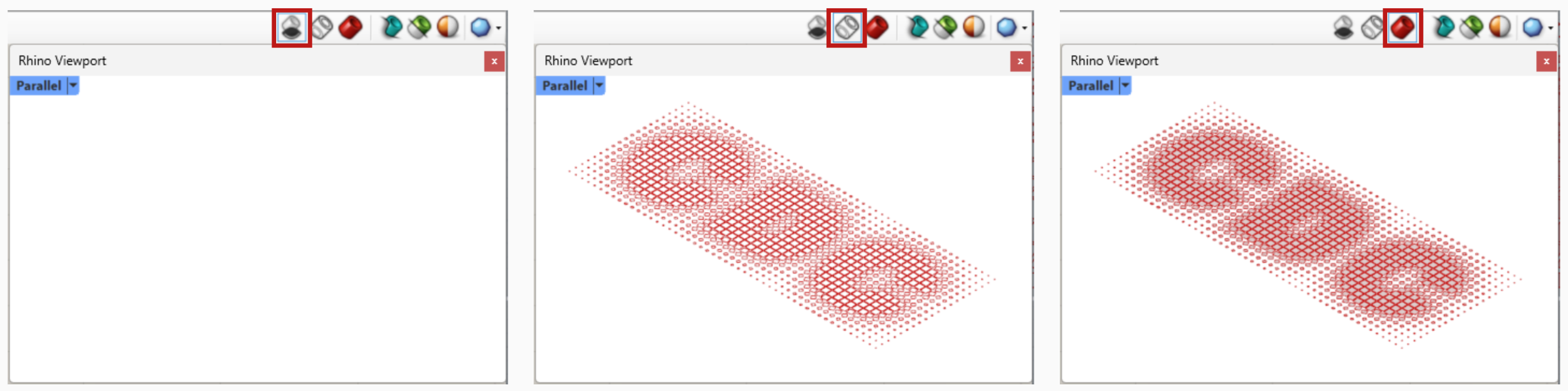
Ctrl + 1: No Preview; Ctrl + 2: Wireframe Preview; Ctrl + 3: Shaded Preview.
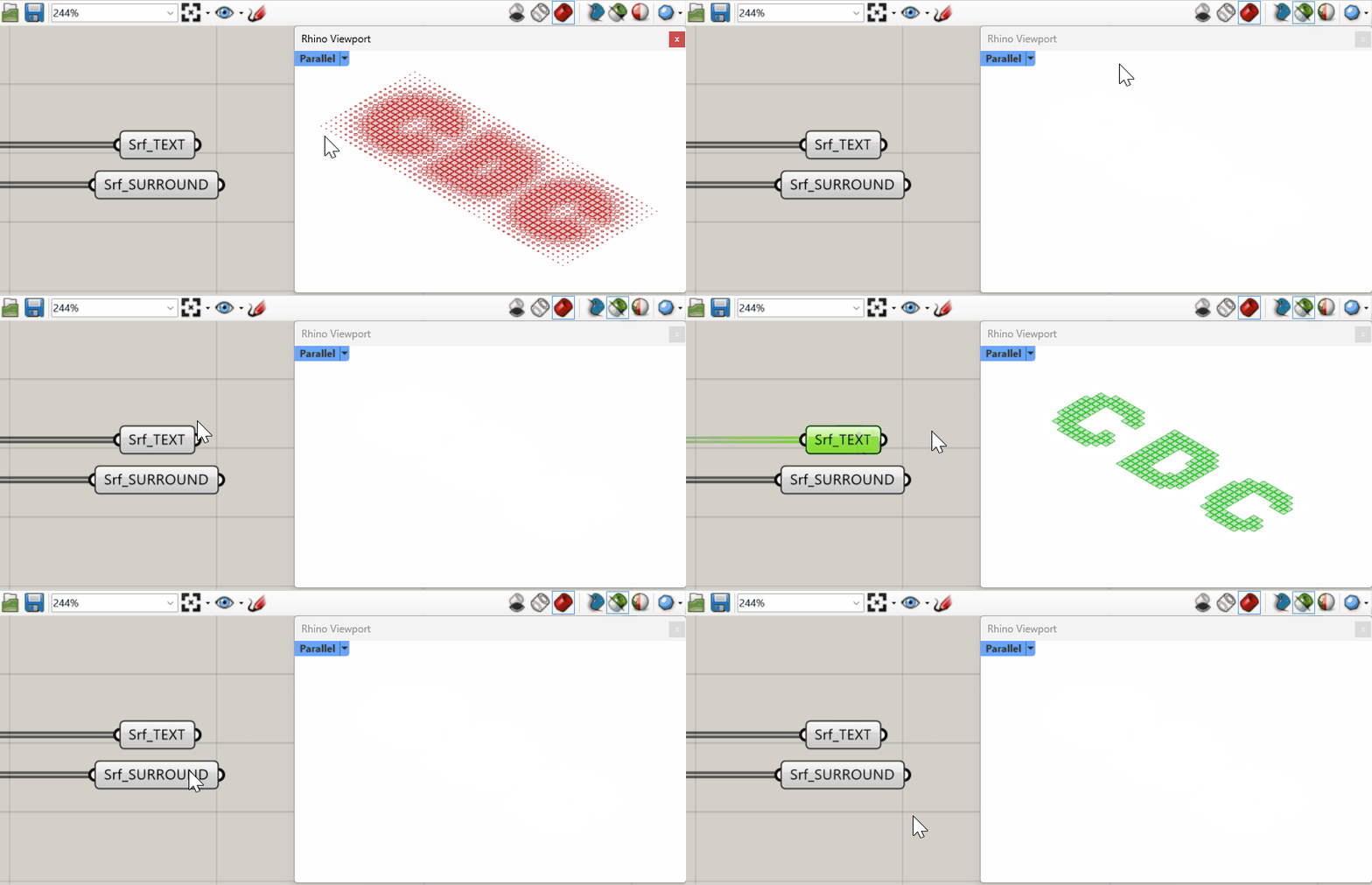
Preview Selected: Only draw preview geometry for selected objects.
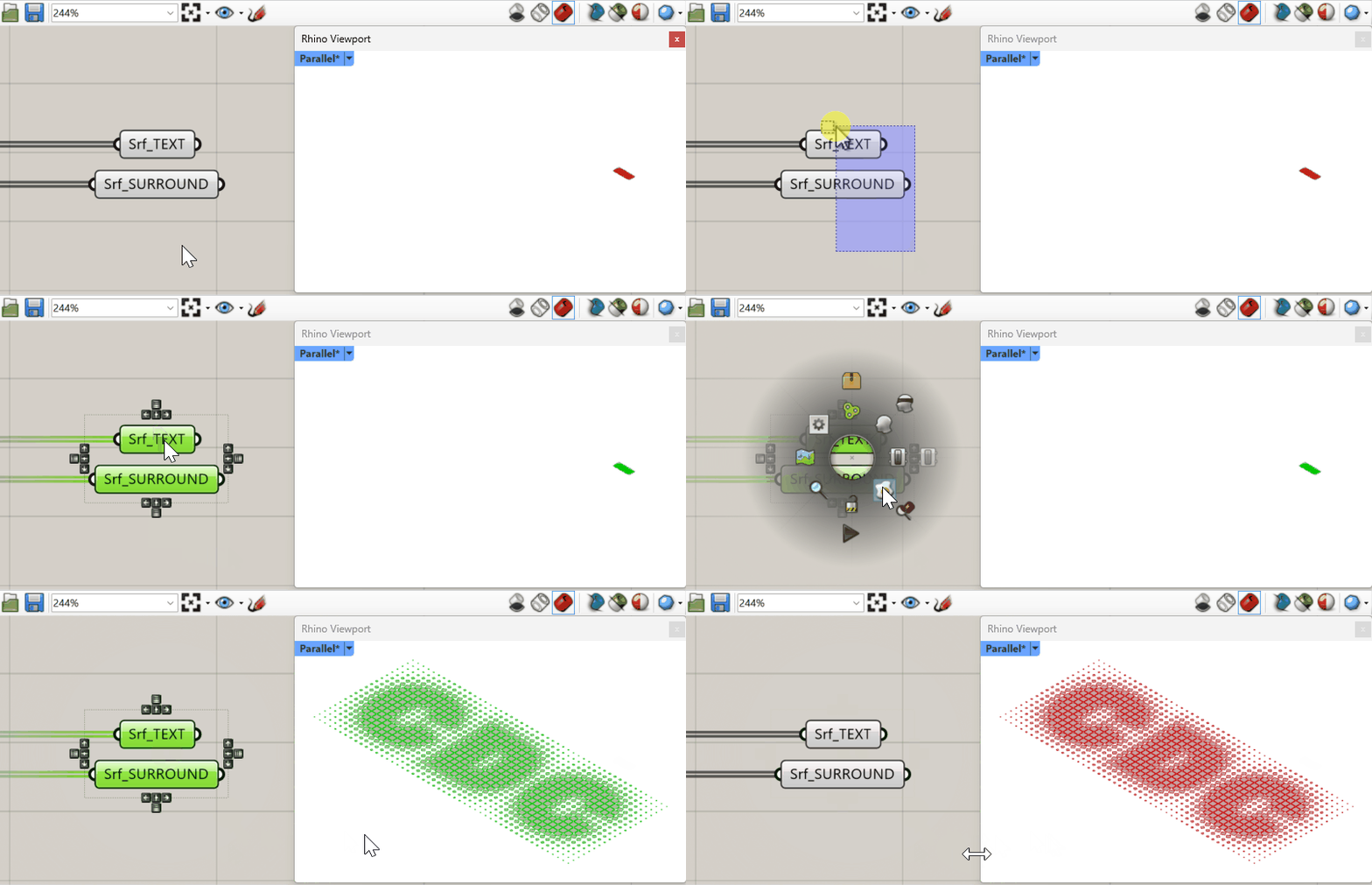
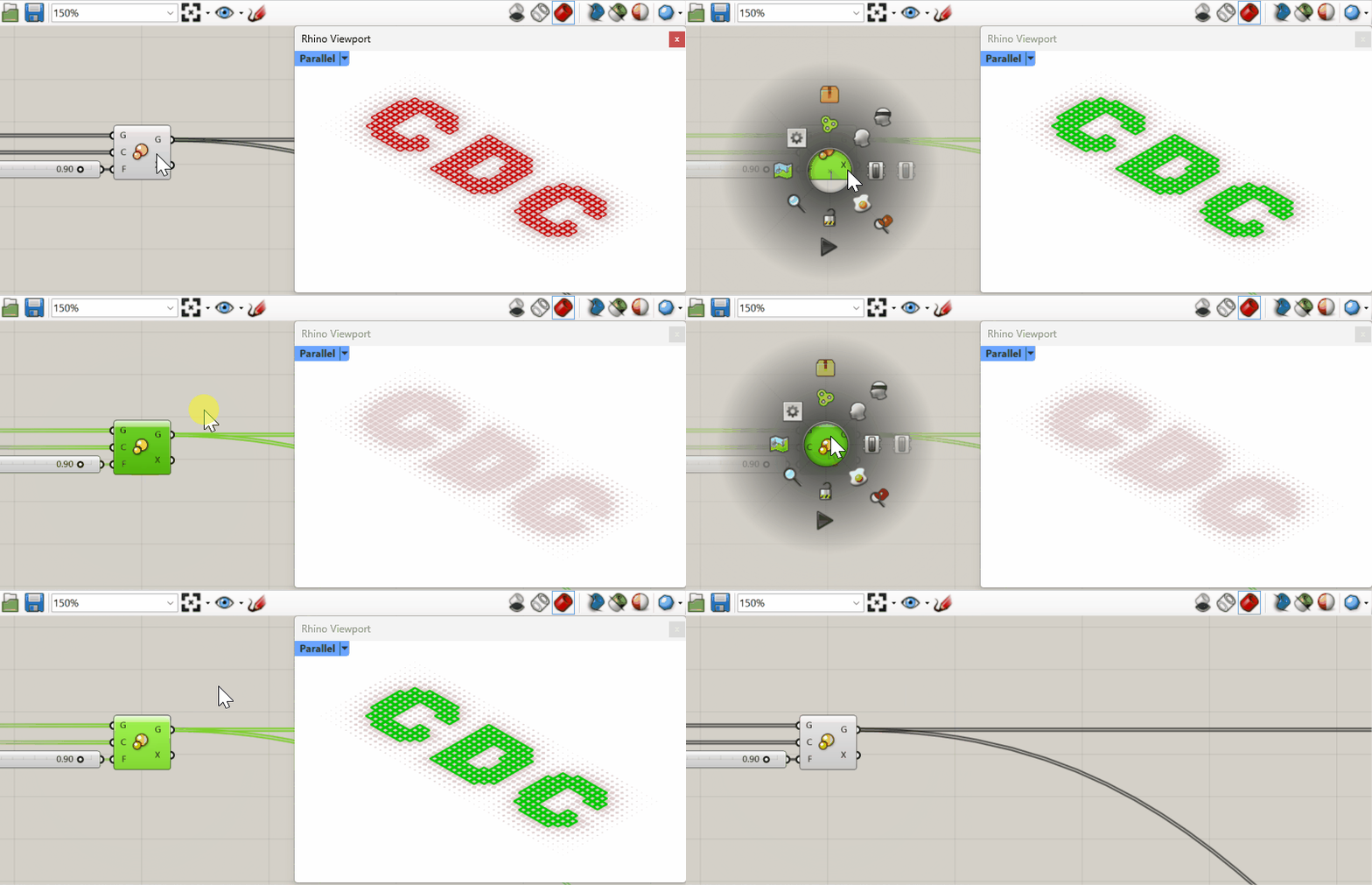
Middle Mouse Button - Zoom: Execute "Zoom to Selected" on the Rhino viewport, focusing the view on the selected objects generated in Grasshopper without baking them.
Ctrl + Q: Toggle Show/Hide (visual display) for selected components on the canvas.
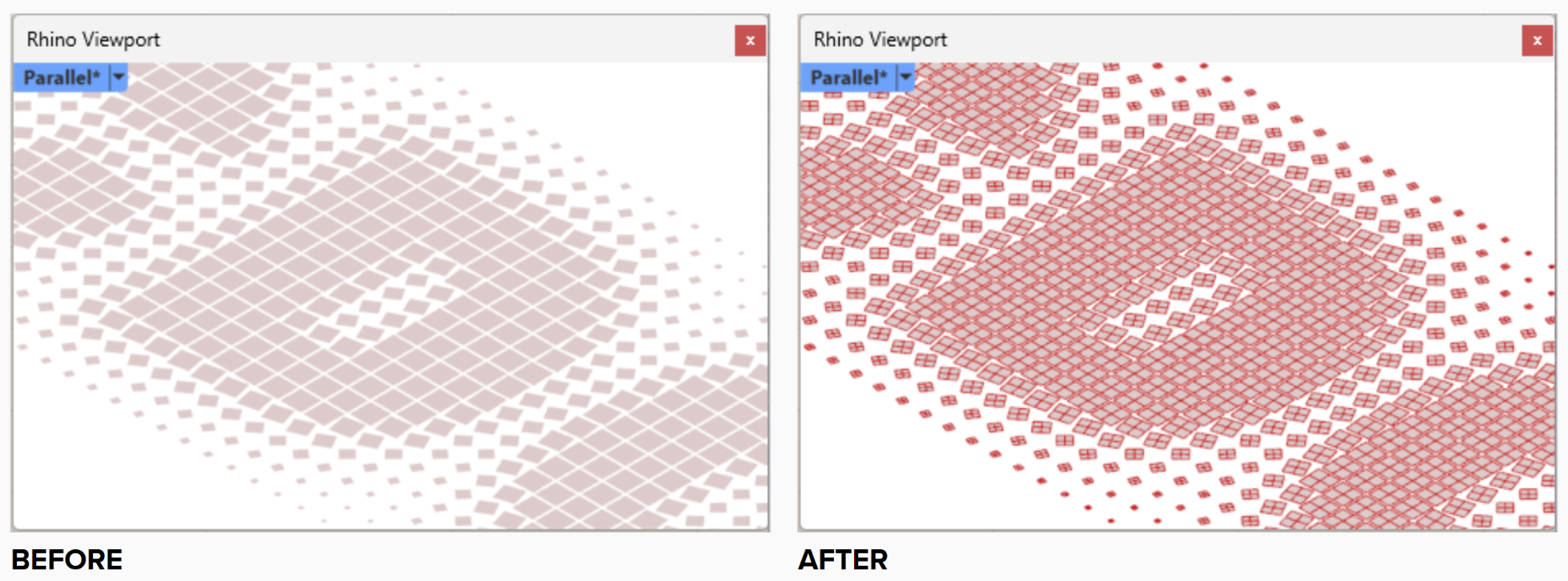
Ctrl + M: Toggle the display of Mesh Edges in the Rhino viewport.
Connection
This section details specialized actions and modifiers for quickly connecting, disconnecting, and rerouting wires, which helps maintain a clean and logical definition structure.
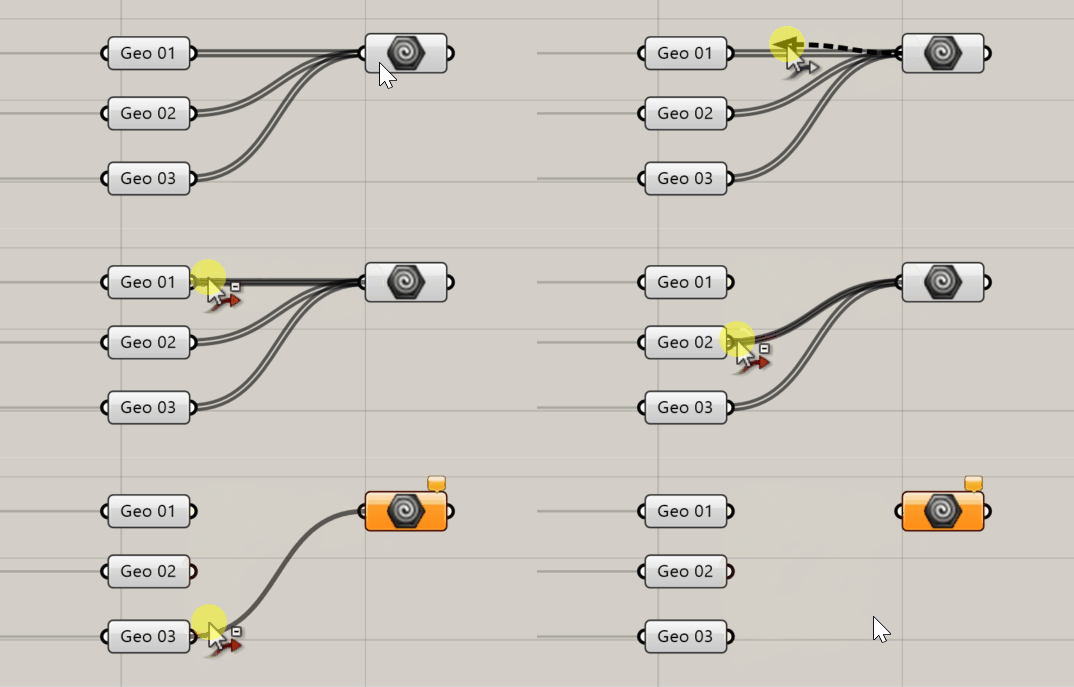
Shift + Drag (from output): Add a new wire connection to another input. You will see a green arrow with a "+" sign.
Ctrl + Drag (on existing wire): Disconnect an existing wire connection. You will see a red arrow with a "-" sign.
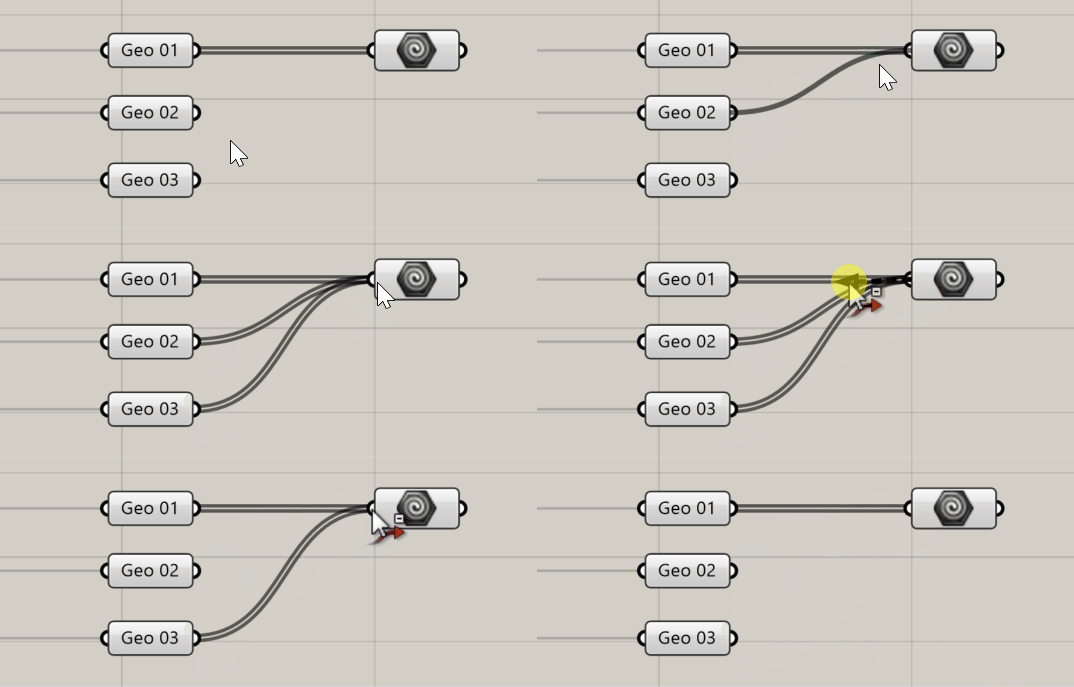
Drag (from output) + Right-click on node (to input): Connect the same data to multiple inputs on the target component (no need to drag a separate wire for each input).
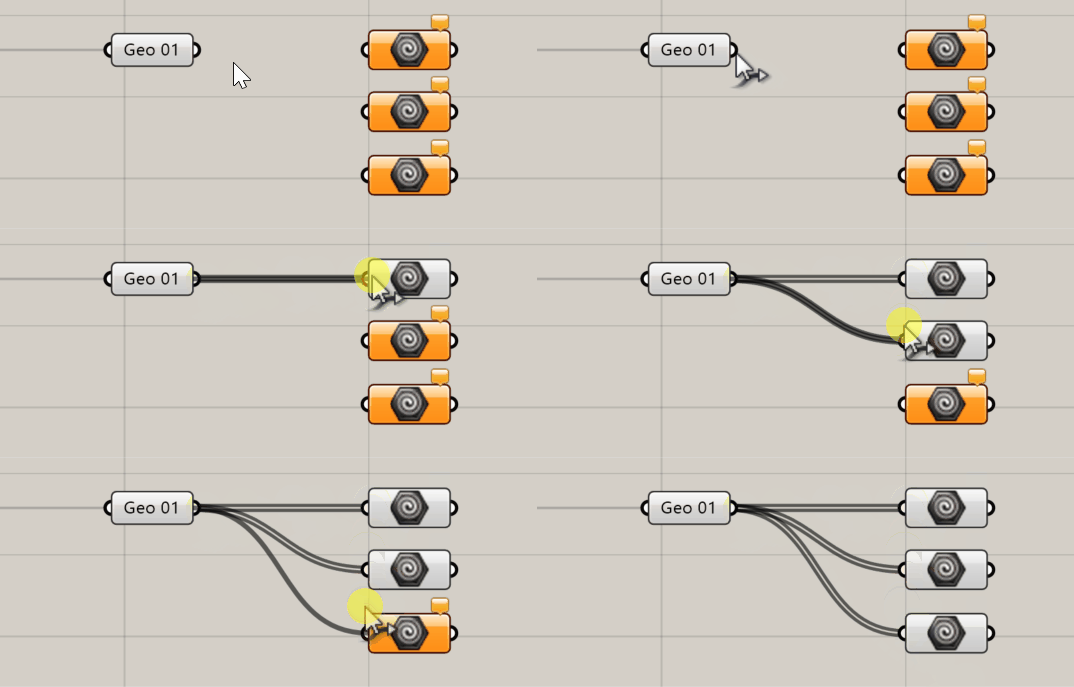
Drag (from input) + Hold Ctrl + Right-click on node (to input): Disconnect the data from multiple inputs on the target component simultaneously.
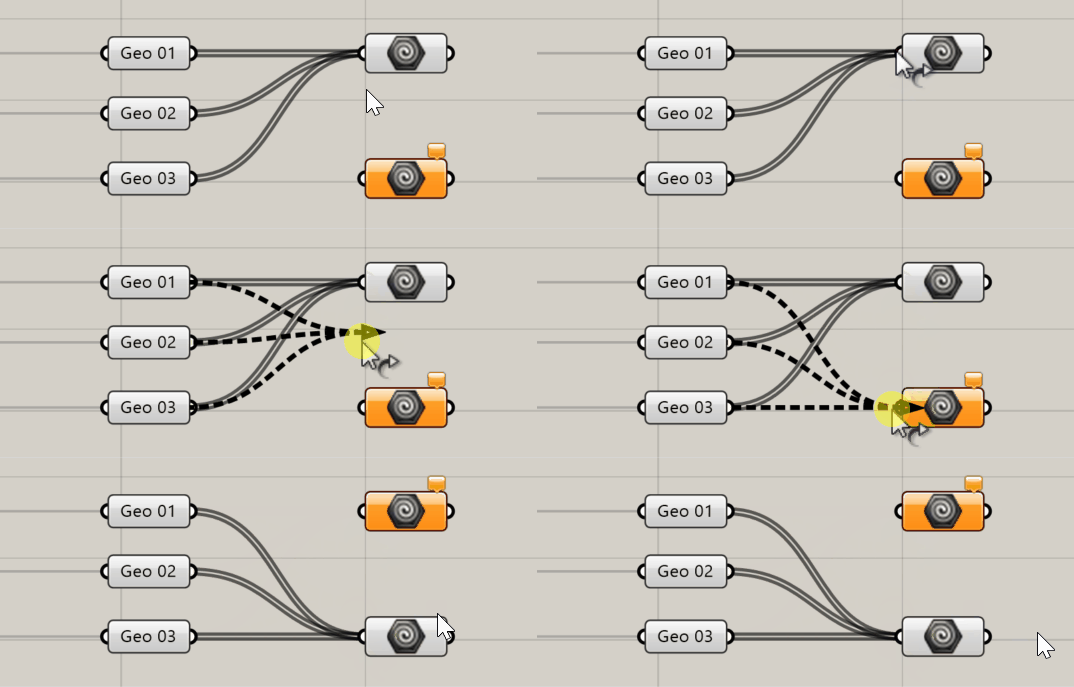
Ctrl + Shift + Drag (from output): Transfer all existing connections from the current output to a new component's input in a single action.
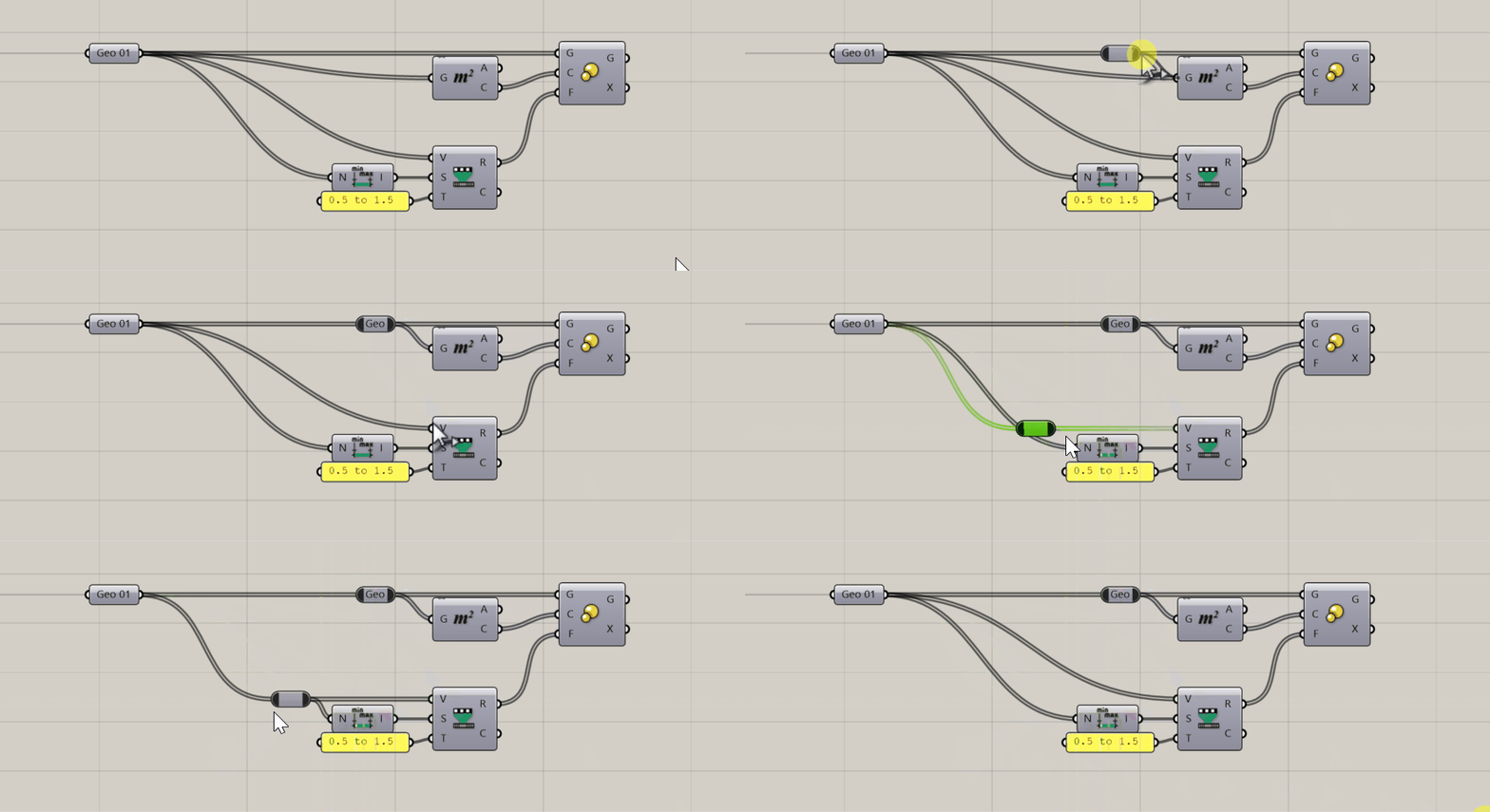
Double-click on an existing wire: Insert a Relay component to segment long wires and manage visual complexity. You could cancel a Relay by double-clicking it.
selection
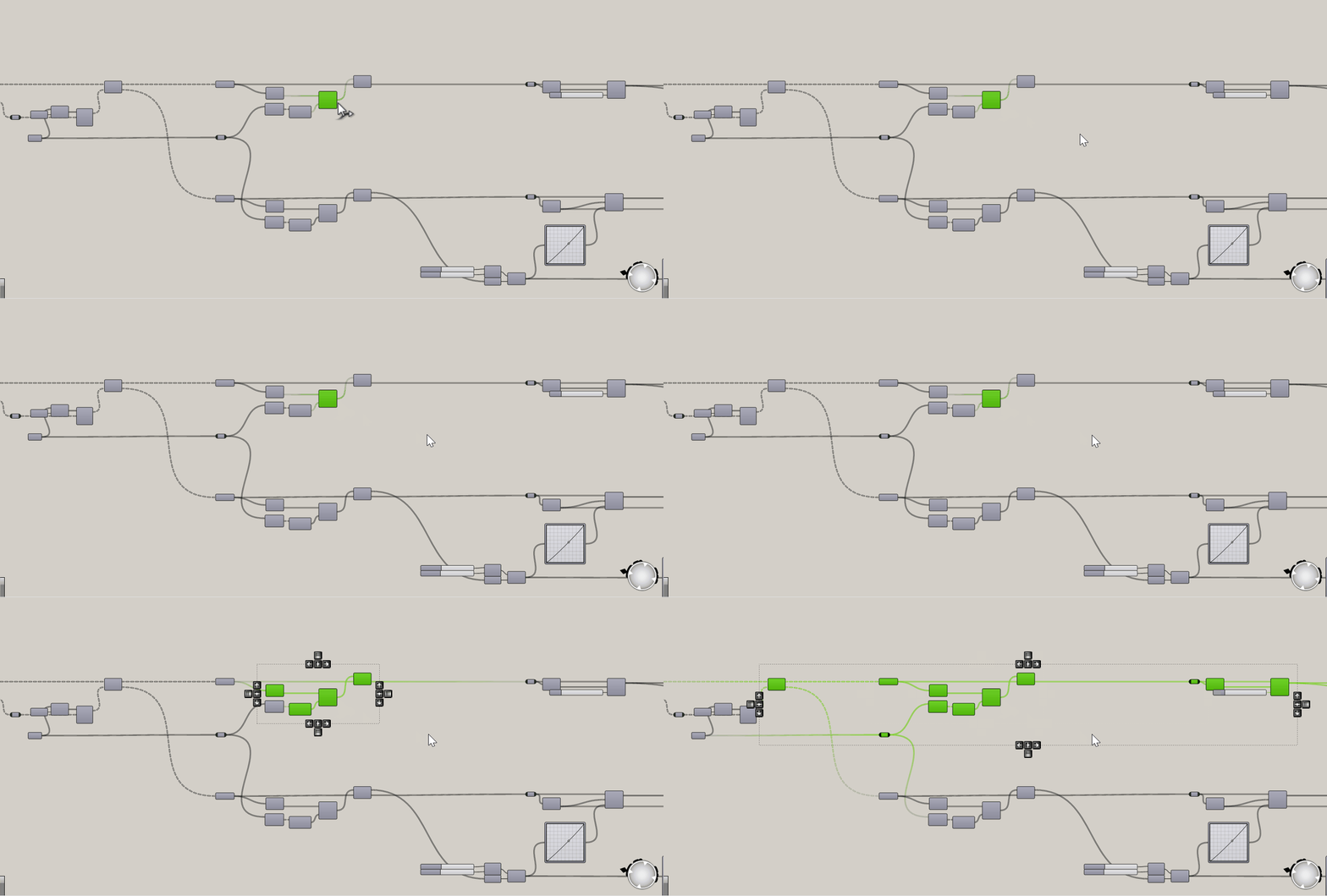
Efficiency in Grasshopper relies on the ability to target the right components quickly. These shortcuts allow you to expand, shrink, and shift your selection based on data flow, accelerating mass edits and focused manipulation.
Ctrl + ← / →: selects only the components connected one step upstream or downstream.

Ctrl + Shift + ← / →: Selects the component and all components connected upstream or downstream.

Ctrl + Shift + A: Selects all components directly connected downstream and upstream.
Navigation & Canvas Maneuver
As your definitions grow, moving around the canvas and locating specific components becomes critical. This category provides tips for finding components and maneuvering components within the canvas.
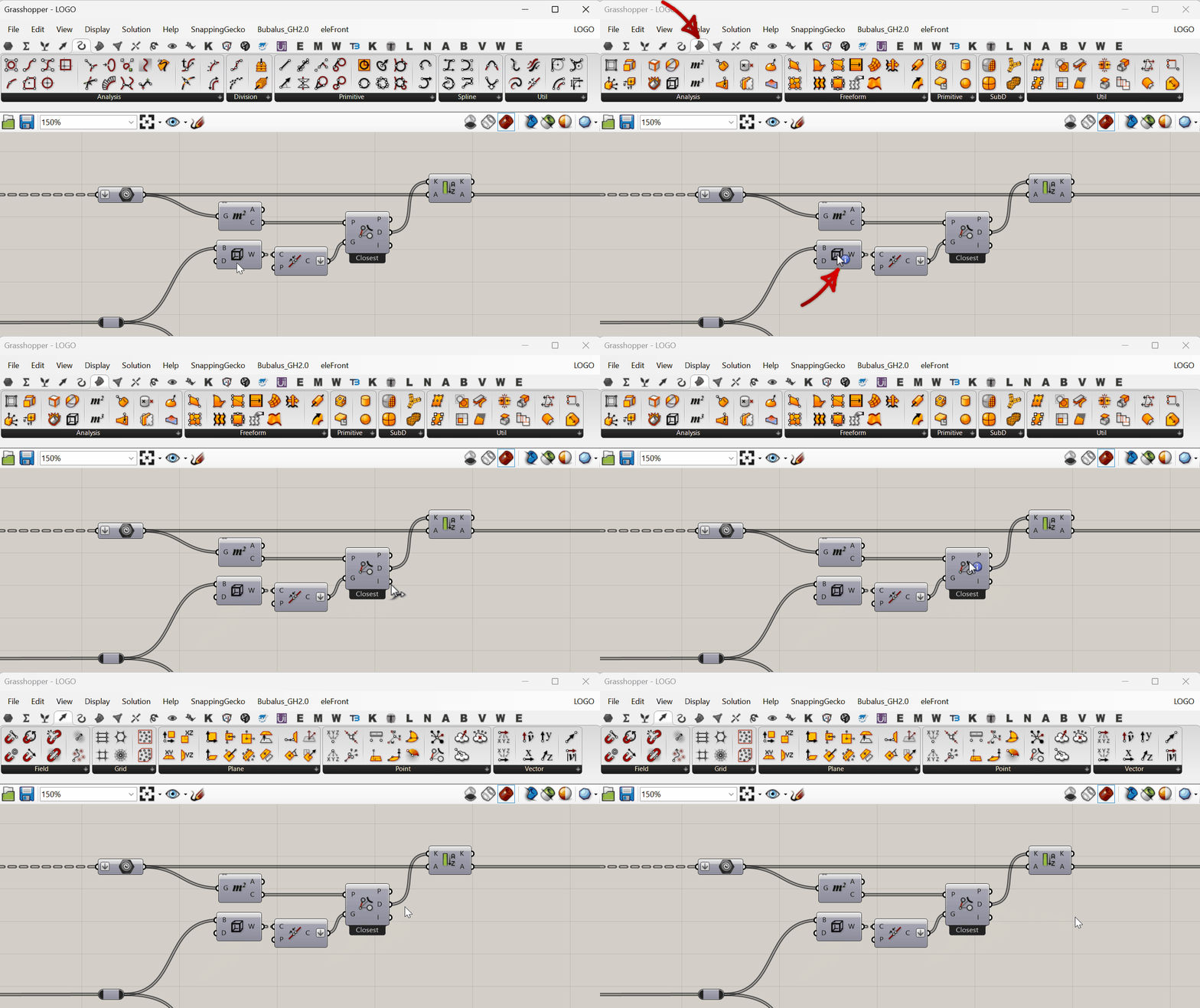
Ctrl + Alt + Left-click (on a component): Locate and highlight the corresponding component icon in the Grasshopper toolbar.
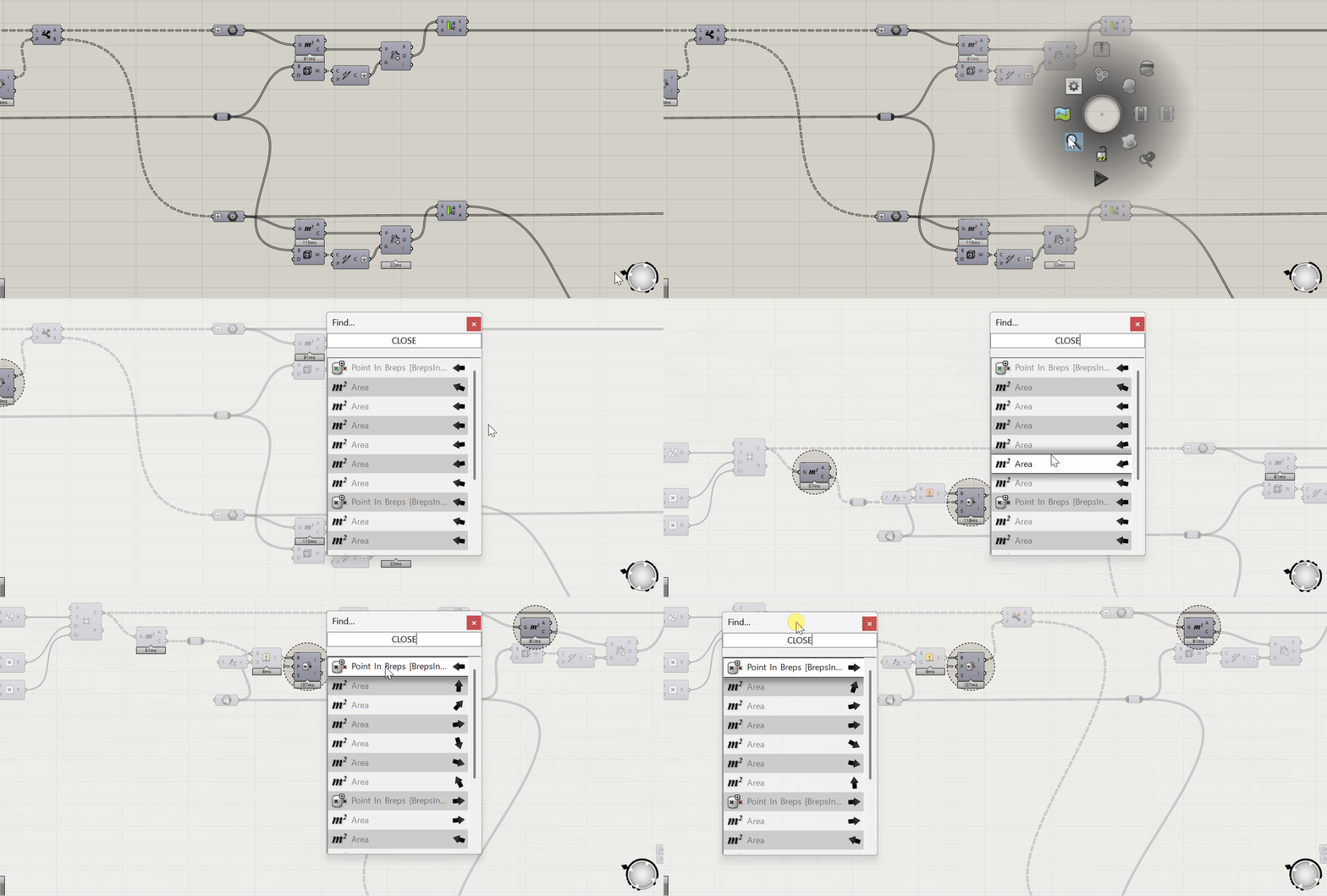
F3 / MiddleMouse Button - Find: Quickly locate and jump to components on the canvas by name.
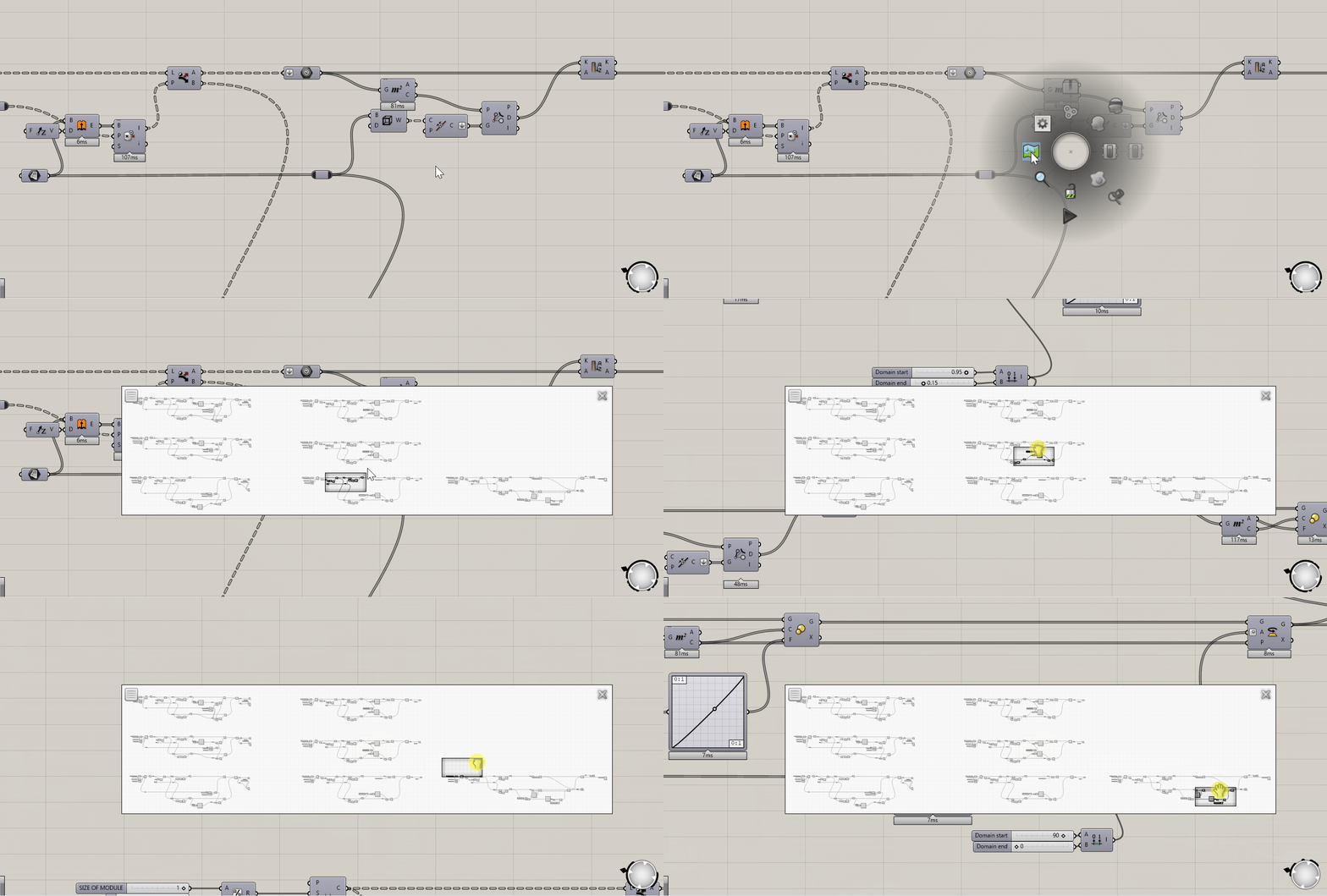
Middle Mouse Button - Navigate: Center the Grasshopper canvas view on the last operation or an important section.
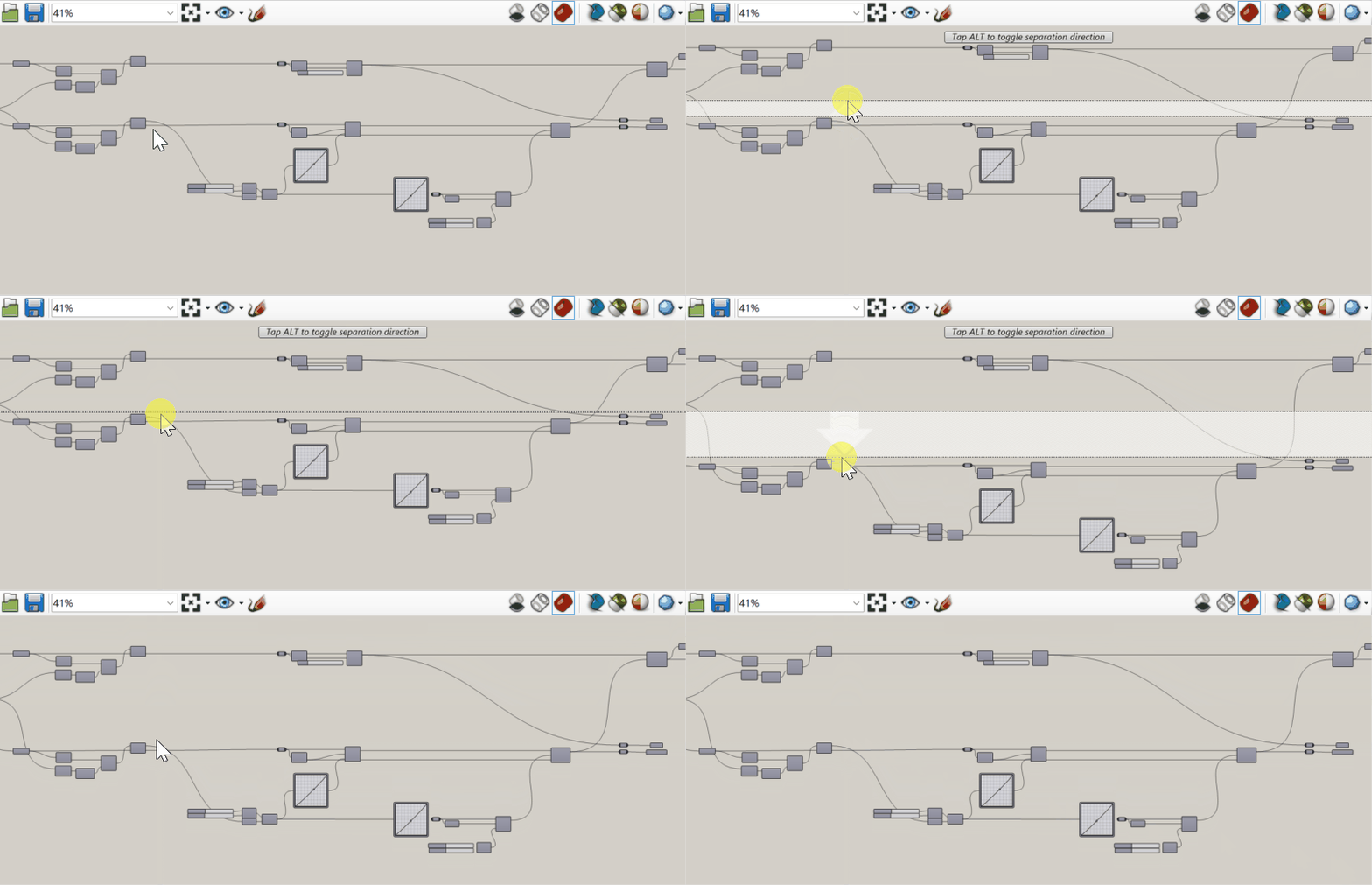
Alt + Drag (on canvas): Push/Move components horizontally to create space.
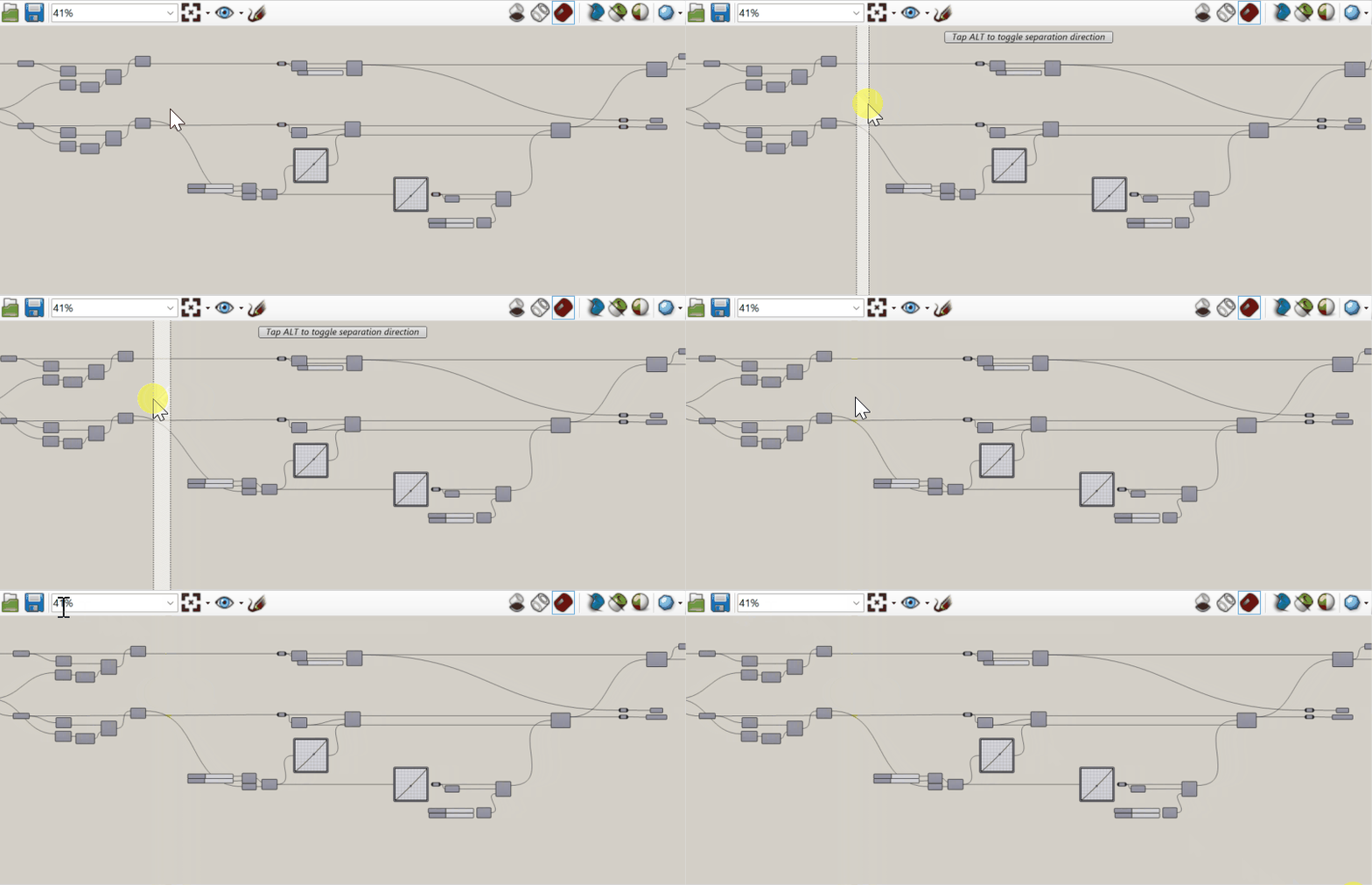
Alt + Drag (on canvas) + Hold Alt: Push/Move components vertically to create space.